How do I check GPU utilization on a cloud GPU?
SSH into the instance while your job runs and use nvidia-smi: the GPU-Util column shows how busy the GPU is, and nvidia-smi --query-gpu=utilization.gpu,memory.used,memory.total --format=csv -l 1 prints it every second; if GPU-Util stays at zero and memory used does not grow, your code is not running on the GPU, so check torch.cuda.is_available() and that both the model and the inputs are on cuda.
Updated 2026-10-27
This guide follows the official NVIDIA nvidia-smi documentation and the official PyTorch docs (Get Started, performance tuning guide, CUDA semantics, DataLoader and profiler), all read on 2026-10-27. It is for people who rent a GPU, run their own training or inference code over SSH, and want to know whether the GPU is doing the work.
Why it matters on a rented card: instances are billed per minute, rounded up, with a 1-minute minimum, whatever the GPU is doing, so a job stuck on the CPU or waiting on data still uses billed minutes. Billing stops when you destroy the instance (see /terms).
Step 1: Deploy a Raw GPU and connect over SSH
-
Open /deploy and choose Raw GPU. Our deploy page describes it as “a raw GPU with JupyterLab + CUDA pre-installed. SSH access, root on a dedicated container, install any Python/CUDA libs you want.”

CloudGPU Quick Deploy page with Inference tab, raw GPU option, and model template cards.
-
Pick a card. Cards listed on /pricing on 2026-10-27 include the RTX 5090 32G, RTX 4090 48G, RTX 4090 24G, RTX 3090 24G, A100 80G, A800 80G, H20 96G and RTX PRO 6000 96G. See current rates on /pricing.
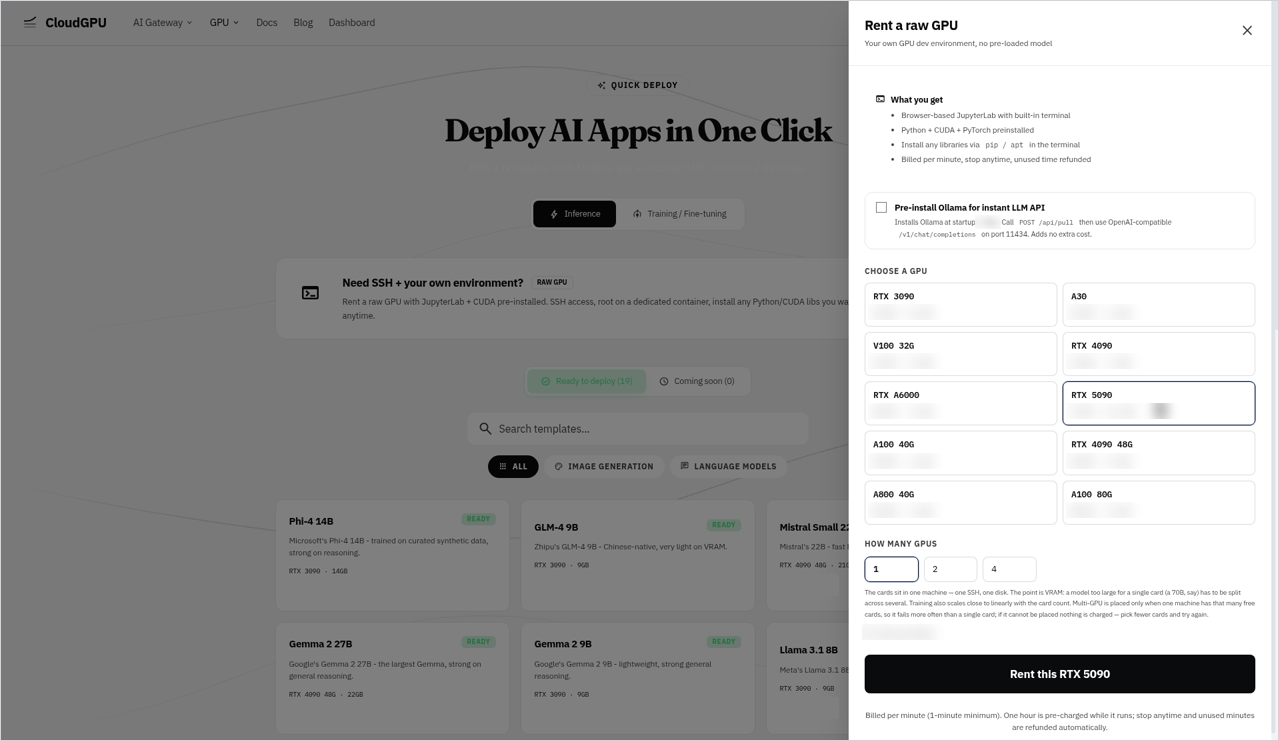
“Rent a raw GPU” panel with RTX 5090 selected and GPU count options.
-
When the instance is running, find its SSH connection details (user, host and port) for that instance in the dashboard, and connect from your laptop:
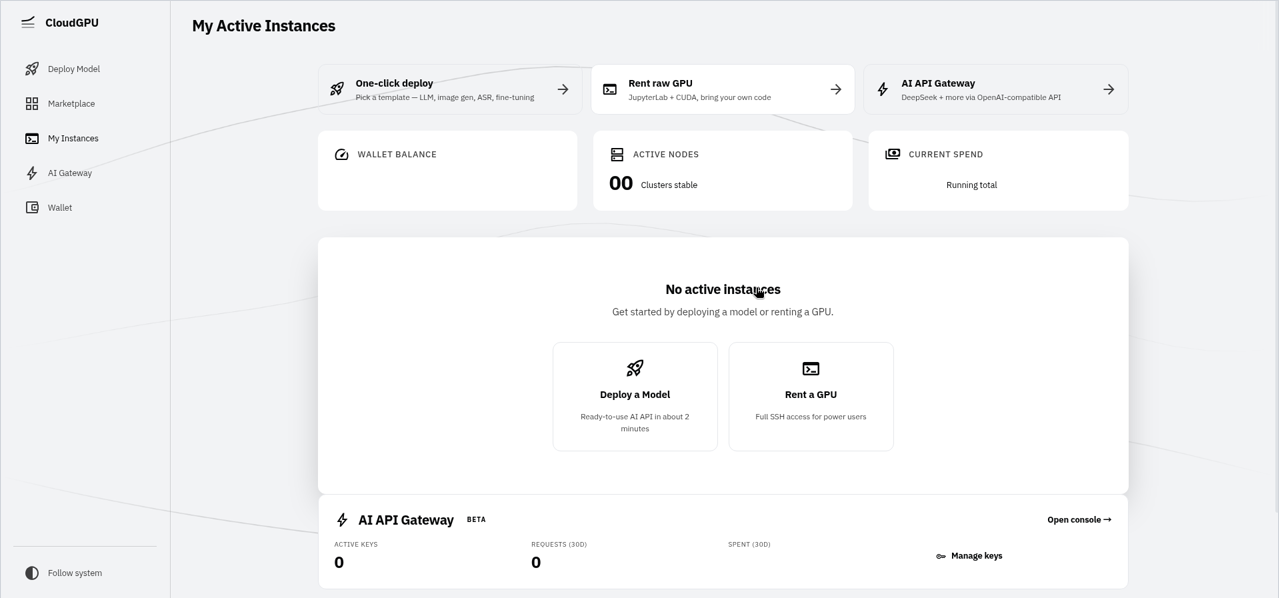
CloudGPU dashboard “My Active Instances” showing no active instances and quick-start actions.
ssh -p <port> <user>@<host>
Open a second SSH session (or a second tmux window) with the same command. You run the job in one and watch the GPU in the other.
Step 2: Check the environment
nvidia-smi              # GPU name, driver version, "CUDA Version" in the header, VRAM, GPU-Util
nvcc --version          # CUDA toolkit version, if the toolkit is on PATH
python3 --version
python3 -c "import torch; print(torch.__version__, torch.version.cuda, torch.cuda.is_available())"
If nvcc is not found, the CUDA toolkit is not on PATH in that shell; find where the toolkit is installed on your instance and add its bin folder to PATH. Whether PyTorch is already installed depends on the image, so check: if the last line fails with No module named 'torch', install PyTorch first with the command for your CUDA version from the official PyTorch Get Started page.
According to the official PyTorch docs, torch.cuda.is_available() is the check for whether “your GPU driver and CUDA/ROCm is enabled and accessible by PyTorch” (Get Started, read 2026-10-27). If it prints False while nvidia-smi works, PyTorch cannot use the GPU, and nothing later in this guide will show utilization.
Step 3: Read the nvidia-smi output
Run nvidia-smi once while your job is running. The lines that matter here:
| Field | What it tells you |
|---|---|
GPU-Util |
How busy the GPU was over the last sample period |
Memory-Usage |
VRAM in use out of the card’s total |
| Processes table | Which processes are using the GPU (may be empty inside a container, see Step 4) |
CUDA Version (header) |
The CUDA version the driver supports |
According to the official NVIDIA docs, GPU utilization is the “percent of time over the past sample period during which one or more kernels was executing on the GPU”, and “the sample period may be between 1 second and 1/6 second depending on the product”. Memory utilization is the same measure for “global (device) memory … being read or written” (nvidia-smi documentation, read 2026-10-27).
Two things follow from that definition:
- GPU-Util counts time, not how much of the chip is used. A small kernel running all the time also reads high. Treat a high value as “the GPU is never idle”, and use the profiler (Step 6) to see where the time goes.
- Memory-Usage alone does not prove work is happening. According to the official PyTorch docs, PyTorch uses a caching allocator, and “the unused memory managed by the allocator will still show as if used in
nvidia-smi” (CUDA semantics, read 2026-10-27). A model that loaded and then stopped can still hold its VRAM.
Step 4: Watch utilization while the job runs
In your second session, pick one of these.
Refresh the full view:
watch -n 1 nvidia-smi # Ctrl-c to exit
Log the numbers once a second to a file, so you can look at the pattern later. The NVIDIA docs describe --query-gpu for selected fields and -l SEC / --loop=SEC to “continuously report query data at the specified interval” (Ctrl-c stops it), and the nounits format option drops the units so the CSV is easy to plot:
nvidia-smi --query-gpu=timestamp,utilization.gpu,utilization.memory,memory.used,memory.total \
  --format=csv,nounits -l 1 | tee gpu-log.csv
Run nvidia-smi --help-query-gpu to list every field name your driver accepts.
One line per second with dmon:
nvidia-smi dmon -s um -d 1 # u = utilization, m = memory; Ctrl-c to exit
The NVIDIA docs say dmon (and the per-process pmon) is “supported on Tesla, GRID, Quadro and limited GeForce products for Kepler or newer GPUs under bare metal 64 bits Linux”, and that an unsupported metric is shown as “-”. On a container-based instance or a GeForce card such as the RTX 5090, it may print dashes. If it does on your instance, use the --query-gpu loop above instead.
Which process holds the GPU:
nvidia-smi --query-compute-apps=pid,process_name,used_memory --format=csv
When a job runs inside a container, the processes table and this query may not list its PID. Check on your instance: if your job’s PID is missing, use ps aux | grep python to confirm the job is alive, and rely on GPU-Util and memory used instead.
Measure during steady work, not while the model loads or the first steps start.
Step 5: Confirm your code runs on the GPU
Run this short test. It allocates on the GPU, does a matrix multiply and waits for it to finish:
python3 - <<'PY'
import torch
print("torch", torch.__version__, "built for CUDA", torch.version.cuda)
print("available:", torch.cuda.is_available())
print("device:", torch.cuda.get_device_name(0))
x = torch.randn(4096, 4096, device="cuda")
y = x @ x
torch.cuda.synchronize()
print("matmul ran on", y.device)
print("allocated MiB:", torch.cuda.memory_allocated() // 2**20,
      "reserved MiB:", torch.cuda.memory_reserved() // 2**20)
PY
If torch.version.cuda prints None, you have a CPU-only build of PyTorch; reinstall it with a CUDA command from the PyTorch Get Started page. If the matmul fails with “no kernel image is available”, the PyTorch build does not support the card; fix the build before you look at utilization.
Then check your own code. Both the model and every batch must be on the GPU:
device = torch.device("cuda")
model = model.to(device)
for inputs, labels in loader:
    inputs, labels = inputs.to(device), labels.to(device)
    ...
A model on cuda with inputs left on the CPU fails with a device-mismatch error. A script that never calls .to("cuda") runs on the CPU without an error, and GPU-Util stays at zero.
Step 6: If GPU-Util is low or jumps up and down
Low or bursty GPU-Util usually means the GPU is waiting for something. Read the pattern in gpu-log.csv and check the matching cause:
| Pattern | Likely cause | What to change | Source |
|---|---|---|---|
| Zero the whole time, memory flat | Code runs on the CPU | Step 2 and Step 5 checks; move model and inputs to cuda |
PyTorch Get Started |
| High for a moment, then near zero, repeating | The training loop waits for the next batch | Set num_workers above 0 in your DataLoader and pin_memory=True |
Tuning guide, DataLoader |
Low and steady, one CPU core busy in top |
Data loading or preprocessing in the main process | Same as above; move heavy preprocessing out of the loop | Tuning guide |
| Low with frequent logging | CPU-GPU syncs every step (.item(), print(tensor), .cpu()) |
Log every N steps instead of every step | Tuning guide |
| High memory, zero GPU-Util | Job finished, crashed or is stuck; memory is still cached | Check the job log and ps aux; the cache shows as used in nvidia-smi |
CUDA semantics |
According to the official PyTorch tuning guide, “the default setting for DataLoader is num_workers=0, which means that the data loading is synchronous and done in the main process”, and “setting num_workers > 0 enables asynchronous data loading and overlap between the training and data loading”; it adds that num_workers “should be tuned depending on the workload, CPU, GPU, and location of training data”, and that “when using a GPU it’s better to set pin_memory=True” (Performance tuning guide, read 2026-10-27). The same guide lists operations that force a CPU-GPU synchronization, including print(cuda_tensor), cuda_tensor.item() and memory copies such as cuda_tensor.cpu().
loader = torch.utils.data.DataLoader(
    dataset, batch_size=..., shuffle=True,
    num_workers=4,       # tune to the instance's vCPU count (check with nproc)
    pin_memory=True,
)
Check the CPU side at the same time with top (press 1 to see each core). How many CPU cores an instance has varies; check nproc on yours before you pick num_workers.
Find where the time goes with the profiler. According to the official PyTorch profiler docs, a schedule lets you record only a few steps of a long loop. This follows the docs’ example:
import torch
from torch.profiler import profile, schedule, ProfilerActivity

def report(prof):
    print(prof.key_averages().table(sort_by="self_cuda_time_total", row_limit=15))

with profile(
    activities=[ProfilerActivity.CPU, ProfilerActivity.CUDA],
    schedule=schedule(wait=1, warmup=1, active=3, repeat=1),
    on_trace_ready=report,
) as prof:
    for step, (inputs, labels) in enumerate(loader):
        train_step(inputs, labels)   # your forward, backward and optimizer step
        prof.step()
        if step >= 5:
            break
(torch.profiler, read 2026-10-27.) If most of the time sits in data loading or CPU operations rather than CUDA kernels, the table above tells you which row to fix.
A note on timing your code
According to the official PyTorch docs, “by default, GPU operations are asynchronous”, so “time measurements without synchronizations are not accurate”; call torch.cuda.synchronize() before you read the clock, or use torch.cuda.Event (CUDA semantics, read 2026-10-27). The same page says setting CUDA_LAUNCH_BLOCKING=1 forces synchronous execution, which helps when a GPU error shows up at the wrong line; use it only for debugging.
Before you destroy the instance
Stop the logging loop with Ctrl-c and copy gpu-log.csv and your results to your laptop, for example scp -P <port> <user>@<host>:~/gpu-log.csv .. Our /terms say data on the instance is permanently deleted when it is destroyed. Billing stops when you destroy the instance (see /terms).
Troubleshooting
| Symptom | What to check | Source |
|---|---|---|
torch.cuda.is_available() is False but nvidia-smi works |
PyTorch is a CPU-only build (torch.version.cuda is None) or its CUDA version does not match the driver; reinstall with the command for your CUDA version |
PyTorch Get Started |
nvidia-smi dmon prints - |
The metric is not supported in this setup; use the --query-gpu ... -l 1 loop |
nvidia-smi documentation |
| Processes table says no running processes while your job runs | This can happen when the job runs inside a container; confirm the job with ps aux and watch GPU-Util and memory instead |
nvidia-smi documentation |
| VRAM stays used after your script ends | The process is still alive (check ps aux), or a notebook kernel still holds tensors; restart that kernel or end the process |
CUDA semantics |
nvidia-smi shows Unknown field for a query |
Field names differ between driver versions; list them with nvidia-smi --help-query-gpu |
nvidia-smi documentation |
| Timing numbers look wrong | GPU work is asynchronous; call torch.cuda.synchronize() before reading the clock |
CUDA semantics |
VRAM need depends on model, precision and workflow; see How much VRAM do I need to run an LLM?.
Check on your instance
Our pages do not list what a Raw GPU instance has installed beyond the deploy page description quoted in Step 1, so check these yourself:
python3 -c "import torch; print(torch.cuda.is_available())"printsTrue. Iftorchis missing or it printsFalse, install a CUDA build from the PyTorch Get Started page (Step 2).- The
--query-gpu ... -l 1loop from Step 4 prints a new line every second while your job runs. nvidia-smi dmon -s umprints numbers. If it prints dashes, use the--query-gpuloop.- The processes table or
--query-compute-appslists your job’s PID. If not, confirm the job withps aux(Step 4). - The Step 5 test script finishes without an error.
FAQ
How do I check GPU utilization on a rented GPU?
SSH into the instance while your job runs and run nvidia-smi. The GPU-Util column shows how busy the GPU is. To watch it over time, run nvidia-smi --query-gpu=utilization.gpu,memory.used,memory.total --format=csv -l 1 in a second SSH session.
What does GPU-Util in nvidia-smi actually measure?
According to the NVIDIA nvidia-smi documentation, it is the share of time over the last sample period during which one or more kernels was running on the GPU. It shows whether the GPU is idle, not how much of the chip each kernel uses.
How do I know if PyTorch is using the GPU?
Run python3 -c “import torch; print(torch.cuda.is_available())” and check that it prints True, then make sure both the model and each batch are moved to cuda. While the job runs, GPU-Util and memory used in nvidia-smi should rise above idle.
Why is my GPU utilization low during training?
Usually the GPU is waiting: for the next batch from a DataLoader with num_workers=0, for preprocessing in the main process, or for CPU-GPU syncs such as .item() or print on every step. Raise num_workers, set pin_memory=True, log less often, and use torch.profiler to see where the time goes.
Why does nvidia-smi show memory used when nothing is running?
PyTorch keeps freed memory in its caching allocator, and the PyTorch docs say that memory still shows as used in nvidia-smi. If your script has ended, check with ps aux whether the process or a notebook kernel is still alive.
Am I billed while the GPU is idle?
Yes. Instances are billed per minute, rounded up, with a 1-minute minimum, whether the GPU is busy or idle. Billing stops when you destroy the instance; see /terms.