How do I download a Hugging Face model on a cloud GPU?

SSH into the GPU instance, install the Hugging Face CLI with pip install -U "huggingface_hub", export your access token as HF_TOKEN if the repo is gated or private, then run hf download <org>/<model> --local-dir <folder>; the files go straight from the Hub to the instance, so nothing passes through your laptop.
Updated 2026-10-27
This guide follows the official Hugging Face Hub docs (CLI guide, download guide, environment variables, gated models and user access tokens), all read on 2026-10-27. It is written for people who rent a GPU and set up their own model over SSH, for example for inference, fine-tuning or evaluation.
Before you start
- A Hugging Face account and a token, only if the model is gated or private. Public repos download without a token.
- Access to gated models is requested in the browser. According to the official Hugging Face docs, “Requesting access can only be done from your browser”; with automatic approval you get access immediately, otherwise “the requests have to be approved manually by the authors, which can take more time” (Gated models, read 2026-10-27). Do this before you deploy, so you are not waiting on approval with a running instance.
- A card with enough VRAM for the model. VRAM need depends on model, precision and workflow; see How much VRAM do I need to run an LLM?.
Step 1: Deploy a Raw GPU and connect over SSH
-
Open /deploy and choose Raw GPU. Our deploy page describes it as “a raw GPU with JupyterLab + CUDA pre-installed. SSH access, root on a dedicated container, install any Python/CUDA libs you want.”
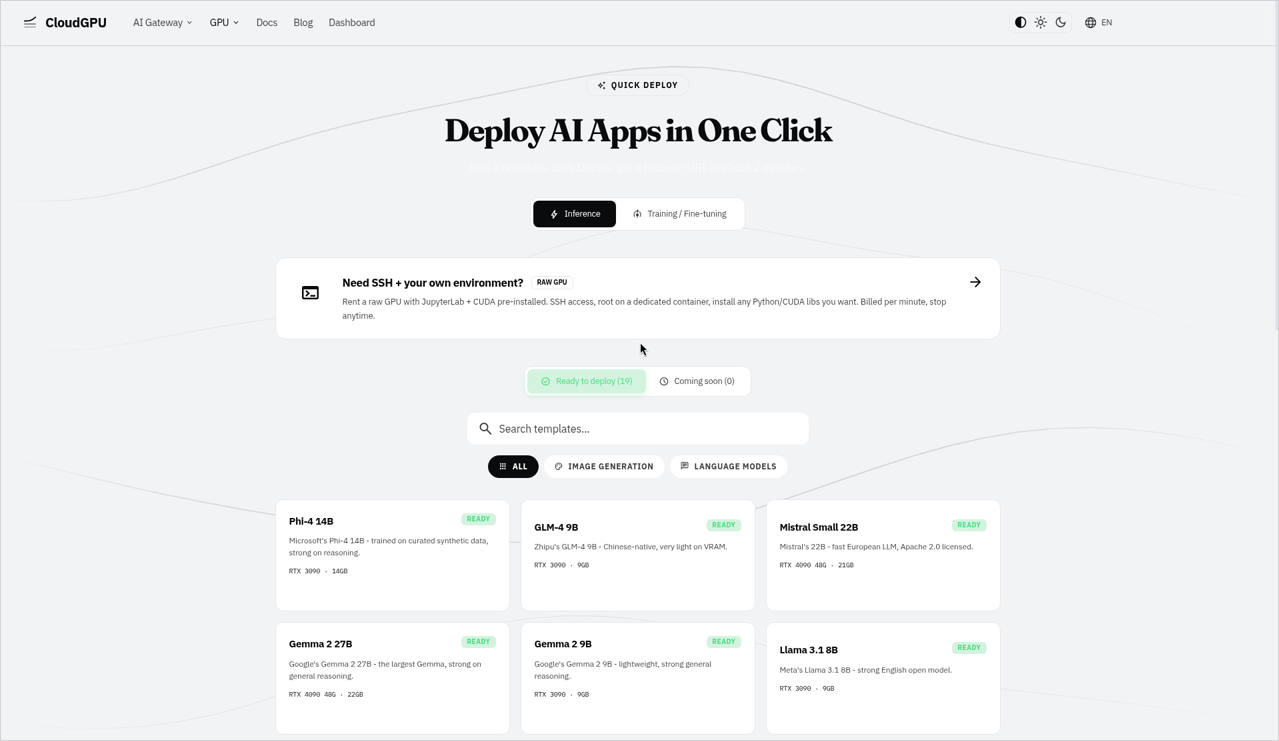
CloudGPU Quick Deploy page with Inference tab, raw GPU option, and model template cards.
-
Pick a card. Cards listed on /pricing on 2026-10-27 include the RTX 5090 32G, RTX 4090 48G, RTX 4090 24G, RTX 3090 24G, A100 80G, A800 80G, H20 96G and RTX PRO 6000 96G. See current rates on /pricing.
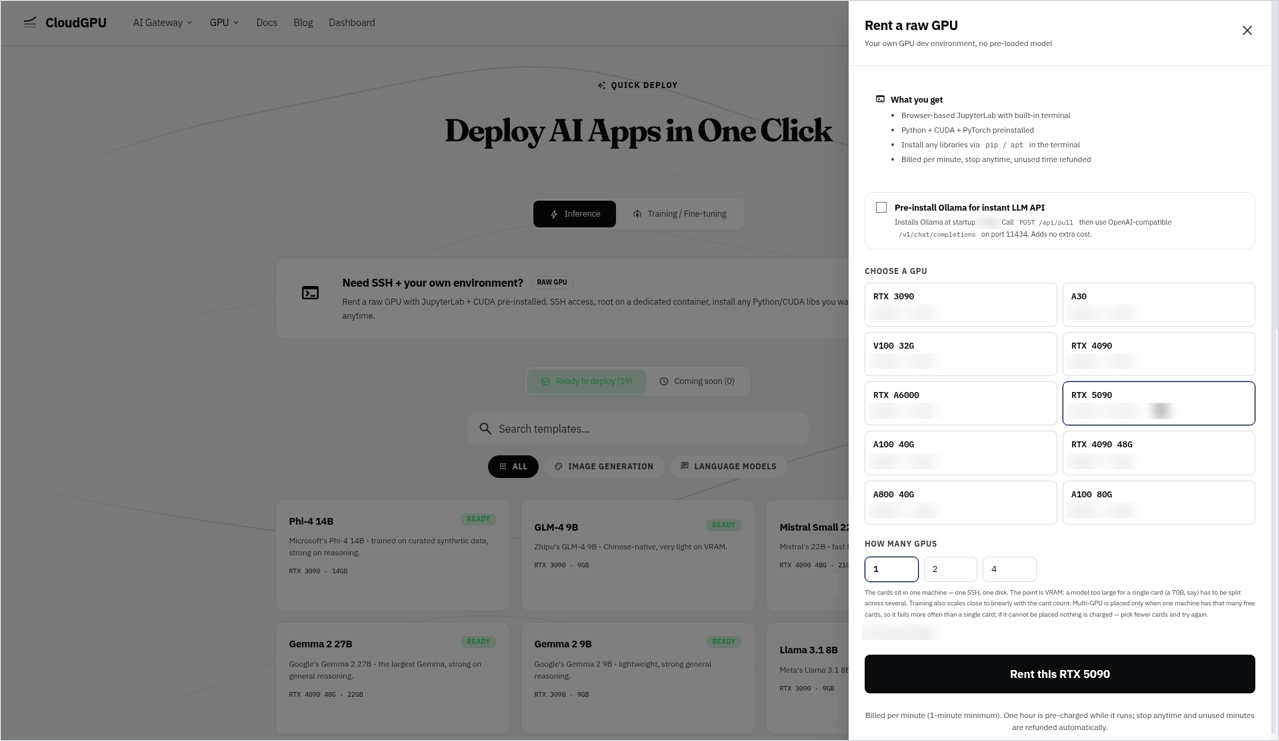
“Rent a raw GPU” panel with RTX 5090 selected and GPU count options.
-
When the instance is running, find its SSH connection details (user, host and port) for that instance in the dashboard, and connect from your laptop:
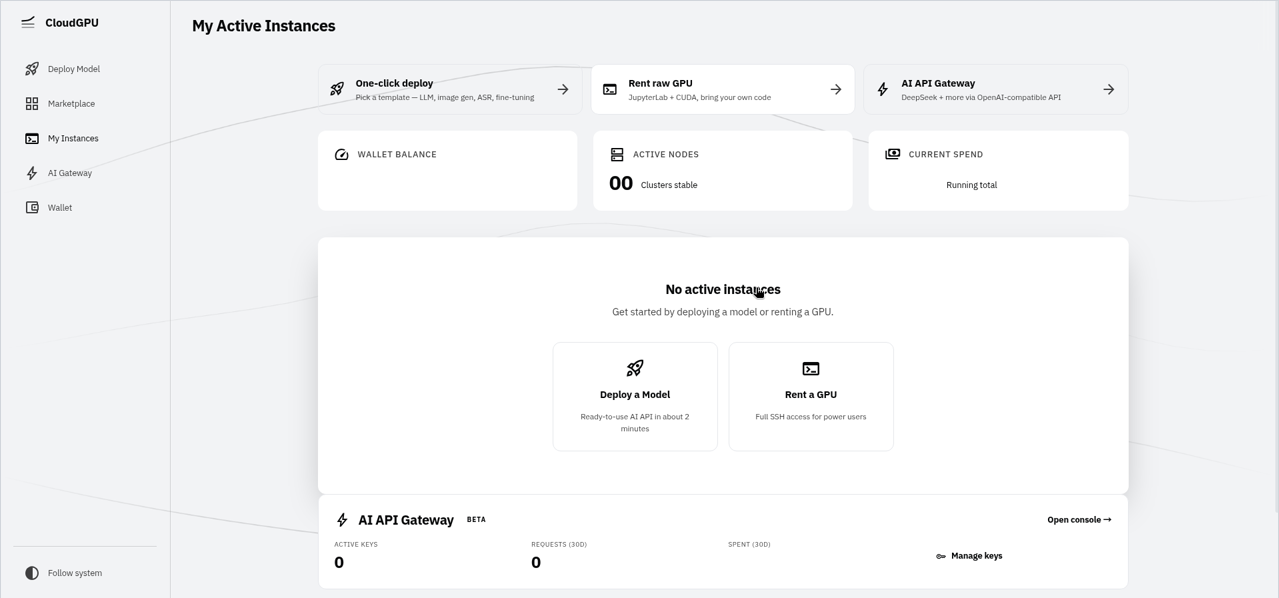
CloudGPU dashboard “My Active Instances” showing no active instances and quick-start actions.
ssh -p <port> <user>@<host>
If you only need ComfyUI, Ollama or LLaMA-Factory, our /docs list ready templates for those; this guide covers the Raw GPU route, where you install what you need over SSH.
Step 2: Check the environment
nvidia-smi              # GPU name, driver version, VRAM
nvcc --version          # CUDA toolkit version, if the toolkit is on PATH
python3 --version
pip3 --version
df -h .                 # free space where you will download (check it, do not assume)
which hf                # prints a path only if the Hugging Face CLI is already installed
If nvcc is not found, the CUDA toolkit is not on PATH in that shell; find where the toolkit is installed on your instance and add its bin folder to PATH (you do not need nvcc to download a model). If which hf prints nothing, the CLI is not installed yet; Step 3 installs it. Before a large download, compare the free space that df -h . reports with the file list you will see in Step 5; how much storage an instance has is not stated here, so check it on yours.
Step 3: Install the Hugging Face CLI
According to the official Hugging Face docs, you can install the CLI with pip or with the standalone installer (Command Line Interface, read 2026-10-27):
pip3 install -U "huggingface_hub"
# or the standalone installer:
# curl -LsSf https://hf.co/cli/install.sh | bash
hf --help
If you keep your project in a virtual environment, create and activate it first (python3 -m venv ~/venv && . ~/venv/bin/activate), then run the pip line inside it. If pip3 refuses to install into the system Python on your instance (for example with an “externally-managed-environment” error), use that virtual environment or the standalone installer instead.
The Hugging Face download guide says that as of huggingface_hub 0.32.0 this also installs hf_xet, the package that now handles transfers (Download guide, read 2026-10-27). Older tutorials tell you to install hf_transfer and set HF_HUB_ENABLE_HF_TRANSFER=1; the Hugging Face docs now mark that variable as deprecated (Environment variables, read 2026-10-27), so you can skip it.
The older huggingface-cli command name appears in many guides; the current docs use hf (for example hf download, hf auth login).
Step 4: Set your token (gated or private models only)
Skip this step for public repos. The steps below follow the official Hugging Face docs.
Create a token in your Hugging Face settings under Access Tokens. According to the official Hugging Face docs, a read token is enough “when downloading private models”, and a fine-grained token can be limited to specific models (User access tokens, read 2026-10-27). Create the token with the same account that was granted access to the gated model.
On the instance, put the token in an environment variable instead of typing it into a command line that stays in your shell history:
read -rs HF_TOKEN && export HF_TOKEN    # paste the token, press Enter; nothing is echoed
hf auth whoami                          # per the HF docs, prints your username if the token is valid
According to the Hugging Face environment-variable docs, when HF_TOKEN is set it “will overwrite the token stored on the machine”, so a stale token stored by an earlier hf auth login is not used. If you prefer to keep the token on the instance, hf auth login --token $HF_TOKEN stores it under HF_HOME (by default ~/.cache/huggingface). Remember that anything stored on the instance is deleted when you destroy it, and revoke the token in your Hugging Face settings if you no longer need it.
Step 5: See what you are about to download
A model repo often holds several copies of the weights (for example .safetensors plus older .bin files, or many quantizations in one GGUF repo). According to the official Hugging Face docs, --dry-run “lists all files to download on the repo and checks whether they are already downloaded or not”, with their sizes (Command Line Interface, read 2026-10-27):
hf download Qwen/Qwen2.5-7B-Instruct --dry-run
Use the list to decide which files you need, and check the total against the free space from Step 2.
Step 6: Download the model
Run long downloads inside tmux (or screen) so they keep going if your SSH connection drops: tmux new -s dl, run the command, then press Ctrl-b, then d to detach, and tmux attach -t dl to come back.
Whole repo into a folder you choose:
hf download Qwen/Qwen2.5-7B-Instruct --local-dir ~/models/qwen2.5-7b-instruct
Only the files you need, using the --include and --exclude patterns from the Hugging Face CLI docs:
hf download <org>/<model> --include "*.safetensors" "*.json" --local-dir ~/models/<model>
One file (for example a single GGUF quantization):
hf download <org>/<model>-GGUF <file-name>.gguf --local-dir ~/models
A pinned version, so a later run gets the same files: add --revision <branch, tag or commit>. A dataset instead of a model: add --repo-type dataset.
Cache or local folder? Without --local-dir, files go to the Hugging Face cache ($HF_HOME/hub, by default ~/.cache/huggingface/hub), and, per the CLI docs, hf download prints the local path on its last line. Libraries such as transformers and diffusers read from that cache, so a later from_pretrained("Qwen/Qwen2.5-7B-Instruct") finds the files without downloading again. With --local-dir, the Hugging Face download guide says the files “maintain their original file structure within the specified folder”, which suits tools that take a plain folder path instead of a repo ID. To move the whole cache to another folder, set HF_HOME before you download:
export HF_HOME=<your-folder>/hf-home
The Hugging Face docs also describe an optional HF_XET_HIGH_PERFORMANCE=1 setting, which “will try to saturate the network bandwidth of this machine and utilize all CPU cores”:
HF_XET_HIGH_PERFORMANCE=1 hf download <org>/<model> --local-dir ~/models/<model>
Step 7: Verify the files and load the model
According to the official Hugging Face docs, hf cache verify checks local files “against their checksums on the Hub”, for a cache snapshot or a regular local folder:
hf cache verify Qwen/Qwen2.5-7B-Instruct --local-dir ~/models/qwen2.5-7b-instruct
hf cache ls                         # what is in the cache (for downloads without --local-dir)
Then do a short functional check that your framework can read the files, for example with transformers (install it first with pip3 install -U transformers if it is missing):
python3 -c "from transformers import AutoConfig, AutoTokenizer; p='$HOME/models/qwen2.5-7b-instruct'; print(AutoConfig.from_pretrained(p).model_type); print(AutoTokenizer.from_pretrained(p)('hello'))"
If that prints the model type and token IDs, your framework can read the files. Load the full model on the GPU with your own inference or training code.
Step 8: Before you destroy the instance
Downloaded models live on the instance. Our /terms say data on the instance is permanently deleted when it is destroyed, and our /docs say you create a new instance to resume, so plan to download the model again on the next instance (keep your hf download commands in a script). Copy fine-tuned weights, adapters and outputs off before you destroy it, for example with hf upload <your-user>/<repo> <folder> (needs a write token) or rsync/scp to your laptop.
Instances are billed per minute, rounded up, with a 1-minute minimum, and that includes the minutes a download runs. Billing stops when you destroy the instance (see /terms).
Troubleshooting
| Symptom | What to check | Source |
|---|---|---|
401 / 403 or “gated repo” error |
Open the model page in the browser and confirm the access request was approved for your account; check hf auth whoami prints that same account; make sure HF_TOKEN is exported in this shell (a set HF_TOKEN overrides a stored token) |
Gated models, Environment variables |
hf: command not found after pip install |
The pip scripts folder is not on PATH; try python3 -m pip show huggingface_hub, activate your venv, or use the standalone installer |
Command Line Interface |
| Timeout errors on a long download | Raise the wait time, for example export HF_HUB_DOWNLOAD_TIMEOUT=60 (the docs give a default of 10 seconds), then run the same hf download command again; files already complete are not fetched again |
Environment variables |
| Download stopped when SSH dropped | Run it again inside tmux (Step 6); the docs say interrupted downloads leave .incomplete files, which hf cache prune cleans up in the cache |
Command Line Interface |
| “No space left on device” | Check free space on the instance with df -h . (it varies, so check rather than assume), download only the files you need with --include, and remove unused repos with hf cache rm or hf cache prune |
Manage cache |
Library downloads the model again although you used --local-dir |
Pass the folder path to the library instead of the repo ID, or download without --local-dir so the files land in the cache |
Download guide |
Check on your instance
What a Raw GPU instance has installed is not listed on our pages beyond the deploy page description quoted in Step 1, so check these on your own instance before a large download:
which hfprints a path: the Hugging Face CLI is already installed. If it prints nothing, install it (Step 3).pip3 install -U "huggingface_hub"finishes without an error. If it does not, use a virtual environment or the standalone installer (Step 3).hf download <repo> --dry-runlists the files you expect, anddf -h .shows enough free space for them (Step 2 and Step 5).- For a gated repo,
hf auth whoamiprints the account that was granted access (Step 4). If you get a401or403, see Troubleshooting. - After the download,
hf cache verifyreports no missing or changed files (Step 7).
FAQ
Can I download a Hugging Face model straight onto a rented GPU?
Yes. SSH into the instance, install the Hugging Face CLI with pip install -U huggingface_hub, and run hf download with the repo ID. The files go from the Hub to the instance directly, so you do not upload anything from your laptop.
Do I need a Hugging Face token to download a model?
Only for gated or private repos. Public repos download without a token. For a gated model, request access on the model page in your browser first, then create a read token with the same account and export it as HF_TOKEN on the instance.
Why do I get a 401 or 403 error for a gated model?
Usually the access request is not approved yet, the token belongs to a different account, or HF_TOKEN is not set in the current shell. Check the model page in the browser, run hf auth whoami on the instance, and export HF_TOKEN again.
Should I use the Hugging Face cache or --local-dir?
Use the cache (the default, under HF_HOME) when you load the model by repo ID with libraries such as transformers or diffusers. Use --local-dir when a tool wants a plain folder path. Both keep the original file structure of the repo.
Is hf_transfer still needed?
No. The Hugging Face docs mark HF_HUB_ENABLE_HF_TRANSFER as deprecated; transfers now go through hf_xet, which is installed with huggingface_hub 0.32.0 and later. The docs also describe an optional HF_XET_HIGH_PERFORMANCE=1 setting.
Do downloaded models stay on the instance after I destroy it?
No. Data on the instance is permanently deleted when it is destroyed, so you download the model again on a new instance. Copy fine-tuned weights and outputs off first, for example with hf upload or rsync. Billing stops when you destroy the instance; see /terms.