How do I install a specific PyTorch and CUDA version on a cloud GPU?
Run nvidia-smi, note the CUDA Version in the header (the newest CUDA the driver supports), then install PyTorch into a virtual environment from the download.pytorch.org index that is not newer than that number, for example pip install torch==2.13.0 torchvision==0.28.0 --index-url https://download.pytorch.org/whl/cu130, and confirm it with python -c "import torch; print(torch.__version__, torch.version.cuda, torch.cuda.is_available())".
Updated 2026-10-27
This guide follows the official NVIDIA docs (nvidia-smi, CUDA Toolkit release notes, CUDA Compatibility, CUDA GPUs list) and the official PyTorch install pages, wheel indexes and docs, all read on 2026-10-27. It is for people who rent a GPU, need a particular PyTorch build for a repo or paper, and keep seeing three different “CUDA versions” on the same machine.
Three CUDA versions on one machine
Each command reports a different thing, and they are allowed to differ:
| Command | What it reports | Source |
|---|---|---|
nvidia-smi (header, “CUDA Version”) |
The newest CUDA version the installed NVIDIA driver supports | nvidia-smi documentation |
nvcc --version |
The CUDA toolkit (compiler) installed on the machine, if any | CUDA Toolkit release notes |
torch.version.cuda |
The CUDA version your PyTorch wheel was built with | PyTorch Get Started |
According to the NVIDIA nvidia-smi docs, the “CUDA Version” field is now called “CUDA UMD Version” and is “the latest CUDA version supported by the driver” (nvidia-smi documentation, read 2026-10-27). It does not tell you which toolkit is installed.
PyTorch wheels do not use the system toolkit. A PyTorch maintainer on the official forums puts it this way: “The PyTorch binaries ship with their own CUDA runtime (as well as cuDNN, NCCL etc.) and don’t need a locally installed CUDA toolkit to execute code but only a properly installed NVIDIA driver” (PyTorch Forums, read 2026-10-27). The same answer says the local toolkit is used when you build PyTorch from source or a custom CUDA extension. So:
- The driver (nvidia-smi) decides which PyTorch builds can run. You cannot change the driver from inside a rented container, so you pick PyTorch to fit it.
- nvcc only matters when you compile CUDA code, for example a package that builds its own CUDA extension during
pip install.
Step 1: Deploy a Raw GPU and connect over SSH
-
Open /deploy and choose Raw GPU. Our deploy page describes it as “a raw GPU with JupyterLab + CUDA pre-installed. SSH access, root on a dedicated container, install any Python/CUDA libs you want.”
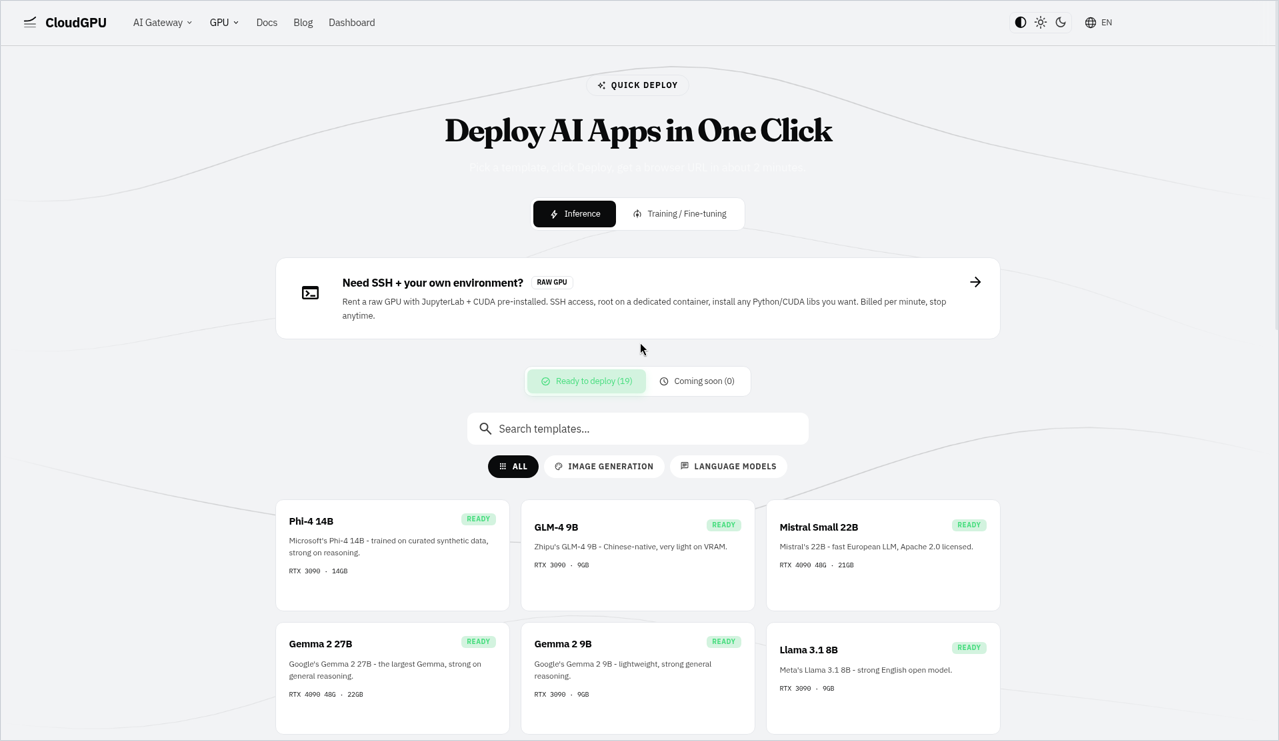
CloudGPU Quick Deploy page with Inference tab, raw GPU option, and model template cards.
-
Pick a card. Cards listed on /pricing on 2026-10-27 include the RTX 5090 32G, RTX 4090 48G, RTX 4090 24G, RTX 3090 24G, A100 80G, A800 80G, H20 96G and RTX PRO 6000 96G. See current rates on /pricing.
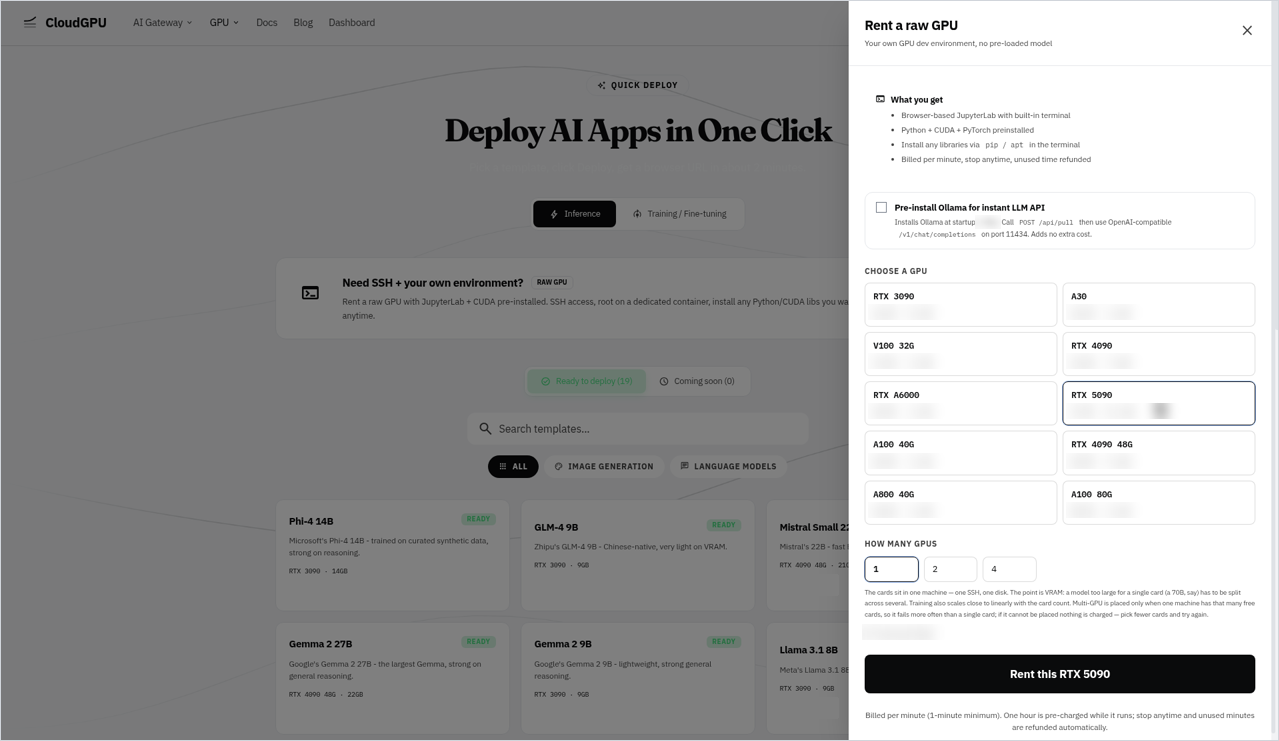
“Rent a raw GPU” panel with RTX 5090 selected and GPU count options.
-
When the instance is running, find its SSH connection details (user, host and port) in the dashboard and connect:
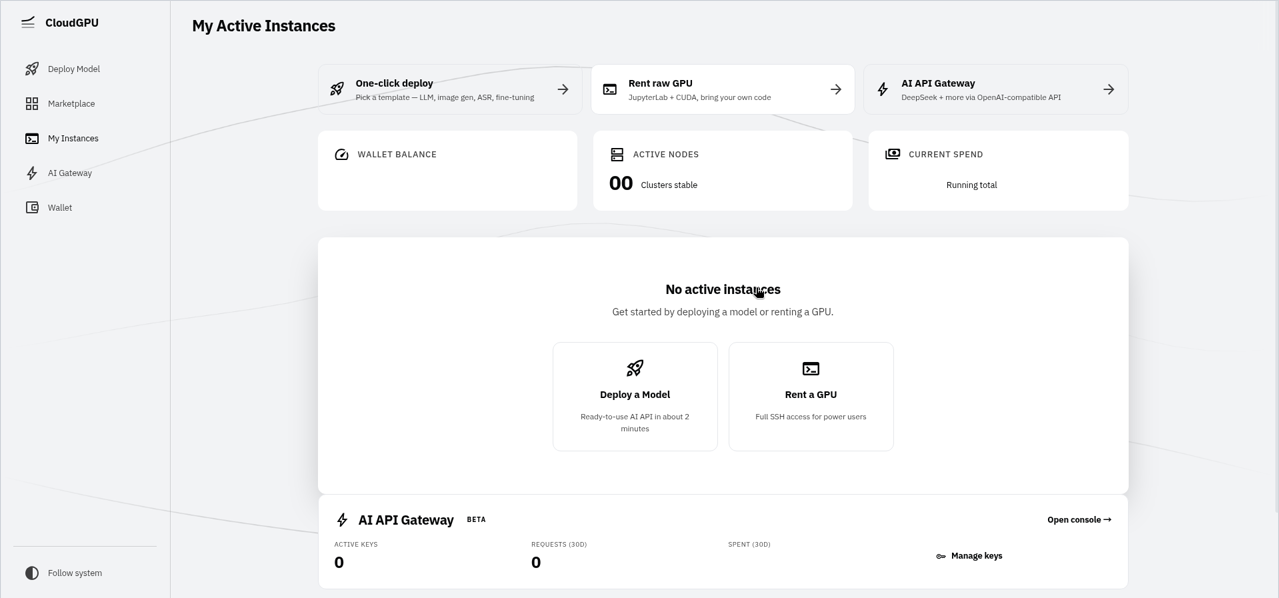
CloudGPU dashboard “My Active Instances” showing no active instances and quick-start actions.
ssh -p <port> <user>@<host>
Step 2: Check the environment before you install anything
nvidia-smi              # GPU name, driver version, "CUDA Version" in the header
nvcc --version          # CUDA toolkit version, if a toolkit is on PATH
python3 --version
python3 -c "import torch; print(torch.__version__, torch.version.cuda, torch.cuda.is_available())"
nvidia-smi --query-gpu=name,driver_version,compute_cap --format=csv
Write down three things: the CUDA Version from the nvidia-smi header, the driver version, and the compute capability (compute_cap). If the last python3 -c line prints a version and True, a PyTorch build is already there; you only need the steps below if you need a different version.
Our deploy page says CUDA is pre-installed but does not list the driver, toolkit or PyTorch versions per card, so read them on your own instance with the commands above before you install anything.
If nvcc is not found, the toolkit is not on PATH in that shell. You do not need it to run PyTorch wheels (see above). If you need it to compile an extension, find where the toolkit is installed on your instance and add its bin folder to PATH.
Step 3: Pick the wheel index that fits your driver
PyTorch publishes one wheel index per CUDA version at https://download.pytorch.org/whl/<index>. Choose an index whose CUDA version is not newer than the CUDA Version in your nvidia-smi header. The newest Linux x86_64 torch on each index, read from download.pytorch.org on 2026-10-27:
As of 2026-10-27. Check the PyTorch site (https://pytorch.org/get-started/locally/) for current versions.
| CUDA Version in nvidia-smi | Index | Newest torch on that index | Includes Blackwell (RTX 5090, compute capability 12.0) |
|---|---|---|---|
| 13.2 or newer | cu132 |
2.14.1 | Yes |
| 13.0 or 13.1 | cu130 |
2.14.1 | Yes |
| 12.9 | cu129 |
2.13.0 | Check with get_arch_list() (Step 5) |
| 12.8 | cu128 |
2.11.0 | Check with get_arch_list() (Step 5) |
| 12.6 or 12.7 | cu126 |
2.14.1 | No |
Where these come from:
- The PyTorch Get Started page lists 2.14.1 as the current stable release, with Linux pip commands for CUDA 12.6 (
cu126) and CUDA 13.2 (cu132) (PyTorch Get Started, read 2026-10-27). - PyTorch’s release compatibility table lists CUDA 12.6, 13.0 and 13.2 builds for 2.14, and Python 3.10 or newer. Its architecture table lists the CUDA 12.6.3 build as covering Maxwell to Hopper (9.0), and the 13.0.3 and 13.2.1 builds as covering Turing (7.5) to Blackwell (10.0, 12.0+PTX) (PyTorch RELEASE.md, read 2026-10-27).
- NVIDIA’s CUDA GPUs list gives the GeForce RTX 5090 compute capability 12.0 and the A100 8.0 (CUDA GPUs, read 2026-10-27). So on an RTX 5090, use a
cu130orcu132build of 2.14; acu126build has no Blackwell code. An A100 (8.0) is covered by all three 2.14 builds.
Why “not newer than”: according to the NVIDIA CUDA Toolkit release notes, “applications compiled against a particular CUDA Toolkit version continue to work on subsequent (later) driver releases”, so an older wheel on a newer driver is fine. The same notes list the driver branch for each toolkit (CUDA 13.0 with R580, 13.1 with R590, 13.2 with R595) and a minor version compatibility range: CUDA 13.x applications on drivers 580 or newer, CUDA 12.x on drivers from 525 up to (not including) 580 (CUDA Toolkit release notes, read 2026-10-27). NVIDIA’s compatibility guide says minor version compatibility comes “with some feature limitations” (CUDA Compatibility, read 2026-10-27), so match the index to the header when you can.
Step 4: Install the version you need in a virtual environment
A virtual environment keeps your build separate from whatever is pre-installed, so you can switch versions by switching environments. The Python docs create one with python -m venv <dir> (venv docs, read 2026-10-27):
python3 -m venv ~/venvs/torch-cu130
source ~/venvs/torch-cu130/bin/activate
python -m pip install --upgrade pip
Current stable for your driver (the Get Started command, with the index from Step 3):
pip install torch torchvision --index-url https://download.pytorch.org/whl/cu132
If python3 -m venv fails because ensurepip is not available, the image is missing the venv module; install your distribution’s Python venv package and retry.
A specific older version. The PyTorch Previous Versions page lists the exact pairs; for 2.13.0 it gives (Previous PyTorch Versions, read 2026-10-27):
# CUDA 12.6
pip install torch==2.13.0 torchvision==0.28.0 --index-url https://download.pytorch.org/whl/cu126
# CUDA 13.0
pip install torch==2.13.0 torchvision==0.28.0 --index-url https://download.pytorch.org/whl/cu130
# CUDA 13.2
pip install torch==2.13.0 torchvision==0.28.0 --index-url https://download.pytorch.org/whl/cu132
Always pin torchvision (and torchaudio if you use it) to the version listed next to your torch version on that page, and always pass --index-url. Without it, pip picks a build for you; check what you got with torch.version.cuda in Step 5.
Switching versions later: create a second environment (for example ~/venvs/torch-cu126) and activate the one you need, or uninstall first inside the same environment:
pip uninstall -y torch torchvision torchaudio
pip install torch==<version> torchvision==<matching version> --index-url https://download.pytorch.org/whl/<index>
Use the environment in JupyterLab. Register it as a notebook kernel, as the IPython docs describe (Installing the IPython kernel, read 2026-10-27), then pick it in the JupyterLab launcher:
pip install ipykernel && python -m ipykernel install --user --name torch-cu130 --display-name "Python (torch-cu130)"
If the new kernel does not show up in the JupyterLab launcher, refresh the browser tab; if it is still missing, re-run the install command from inside the activated environment.
Step 5: Verify the build, the driver and the card
Run this inside the activated environment:
python - <<'PY'
import torch
print("torch", torch.__version__, "built for CUDA", torch.version.cuda)
print("available:", torch.cuda.is_available())
print("device:", torch.cuda.get_device_name(0), "capability:", torch.cuda.get_device_capability(0))
print("build covers:", torch.cuda.get_arch_list())
x = torch.randn(4096, 4096, device="cuda")
y = x @ x
torch.cuda.synchronize()
print("matmul ran on", y.device)
PY
What to look for:
torch.version.cudamatches the index you installed from (for example13.0forcu130).Nonemeans a CPU-only build.available: True.build coversincludes your card’s architecture. According to the PyTorch docs,get_arch_list()returns the “list CUDA architectures this library was compiled for” (torch.cuda.get_arch_list, read 2026-10-27). For an RTX 5090 (capability 12.0) look forsm_120.- The matmul line prints
cuda:0. A build that does not include your card can still reportavailable: Trueand then fail at the first kernel with “no kernel image is available”.
Step 6: Packages that compile CUDA code need a matching nvcc
Some packages build a CUDA extension during pip install. That is when the system toolkit matters, per the PyTorch maintainer answer above. If such a build fails with a CUDA version mismatch, compare nvcc --version with torch.version.cuda, and check the package’s own install docs for the PyTorch and CUDA versions it supports before you change anything. Prefer a prebuilt wheel from the package’s docs when one exists for your PyTorch and CUDA pair.
Before you destroy the instance
Write the working combination down (pip freeze > requirements-gpu.txt, plus the nvidia-smi header line) and copy it to your laptop, for example scp -P <port> <user>@<host>:~/requirements-gpu.txt ., so you can rebuild the same environment on the next instance. Our /terms say data on the instance is permanently deleted when it is destroyed. Billing is per minute, rounded up, with a 1-minute minimum, and billing stops when you destroy the instance (see /terms).
Troubleshooting
| Symptom | What to check | Source |
|---|---|---|
torch.cuda.is_available() is False, nvidia-smi works |
torch.version.cuda is None (CPU build) or newer than the nvidia-smi CUDA Version; reinstall from a matching index |
PyTorch Get Started, CUDA release notes |
| nvidia-smi says one CUDA version, nvcc another | Normal: driver ceiling vs installed toolkit | nvidia-smi documentation |
nvcc: command not found but PyTorch works |
Normal: wheels bring their own CUDA runtime | PyTorch Forums |
| “no kernel image is available” on an RTX 5090 | Build lacks sm_120; install a cu130 or cu132 build of 2.14 |
PyTorch RELEASE.md |
No matching distribution found for torch==X |
That version is not on that index; check the Previous Versions page or the index listing | Previous PyTorch Versions |
| Notebook still imports the old torch | The notebook uses a different kernel; register and select your environment’s kernel | IPython kernel install |
Which card fits your model is a separate question; see How much VRAM do I need to run an LLM?.
Check on your instance
Our pages do not list the driver, toolkit or PyTorch versions on a Raw GPU instance, so check these yourself:
- The
nvidia-smiheader shows a driver version and a CUDA Version. Use that CUDA Version to pick the index in Step 3. nvcc --versionruns. Ifnvccisn’t on PATH, you only need it for Step 6.python3 -c "import torch; ..."from Step 2 tells you whether PyTorch is already installed and whichtorch.version.cudait has.python3 -m venvcreates an environment without errors.- After Step 4, the Step 5 script prints your card’s architecture in
build covers(for an RTX 5090,sm_120) and the matmul line printscuda:0. - A kernel registered with
ipykernelappears in the JupyterLab launcher.
FAQ
Why does nvidia-smi show a different CUDA version than torch.version.cuda?
They measure different things. The CUDA Version in nvidia-smi is the newest CUDA the installed driver supports, and torch.version.cuda is the CUDA version your PyTorch wheel was built with. They can differ; the wheel’s version should not be newer than the version nvidia-smi shows.
Do I need nvcc or the CUDA toolkit to use PyTorch on a GPU?
No, not to run it. PyTorch wheels ship with their own CUDA runtime and only need a working NVIDIA driver. You need nvcc only when you build PyTorch from source or compile a custom CUDA extension.
Which PyTorch build should I install on an RTX 5090?
The RTX 5090 has compute capability 12.0 (Blackwell). For PyTorch 2.14, the CUDA 13.0 and 13.2 builds include Blackwell and the CUDA 12.6 build does not, so install from the cu130 or cu132 index and check that torch.cuda.get_arch_list() includes sm_120.
How do I install an older PyTorch version with a specific CUDA build?
Copy the exact command from the PyTorch Previous Versions page, for example pip install torch==2.13.0 torchvision==0.28.0 --index-url https://download.pytorch.org/whl/cu130, and run it in a fresh virtual environment. Keep torchvision on the version listed next to your torch version.
torch.cuda.is_available() returns False after I installed PyTorch. What should I check?
Print torch.version.cuda. If it is None, you installed a CPU-only build; if it is newer than the CUDA Version in nvidia-smi, the driver may be too old for that build. Reinstall from the download.pytorch.org index that matches your driver.