How do I set up a conda environment on a cloud GPU?
Install Miniforge in your home folder (bash Miniforge3-$(uname)-$(uname -m).sh -b, then ~/miniforge3/bin/conda init bash), create an environment with conda create -n torch python=3.12, activate it, and install PyTorch inside it with pip from the download.pytorch.org index that fits the CUDA Version shown by nvidia-smi, for example pip install torch torchvision --index-url https://download.pytorch.org/whl/cu132.
Updated 2026-10-27
The short version: use conda (Miniforge) for the environment and pip for PyTorch, because the -c pytorch conda channel is retired. This guide follows the official Miniforge README, the conda docs, the PyTorch install page and the PyTorch release notes, all read on 2026-10-27. It is for people who move a project from a laptop, Colab or a university cluster to a rented GPU and want the same conda workflow there.
Why conda for the environment, pip for PyTorch
According to PyTorch’s announcement on GitHub, 2.5 was the last release of PyTorch published to its pytorch channel on Anaconda; the announcement points users to the wheels on download.pytorch.org or PyPI, or to the conda-forge pytorch packages if they want to stay with conda (pytorch/pytorch#138506, read 2026-10-27). The PyTorch install page now says “To install the PyTorch binaries, you will need to use the supported package manager: pip” (PyTorch Get Started, read 2026-10-27).
So an old line like conda install pytorch torchvision pytorch-cuda=12.1 -c pytorch -c nvidia, which still appears in many tutorials, gives you an outdated build. The current pattern is: conda creates and pins the environment (Python version, non-Python libraries), pip installs PyTorch inside it.
Step 1: Deploy a Raw GPU and connect
-
Open /deploy and choose Raw GPU. Our deploy page describes it as “a raw GPU with JupyterLab + CUDA pre-installed. SSH access, root on a dedicated container, install any Python/CUDA libs you want.”
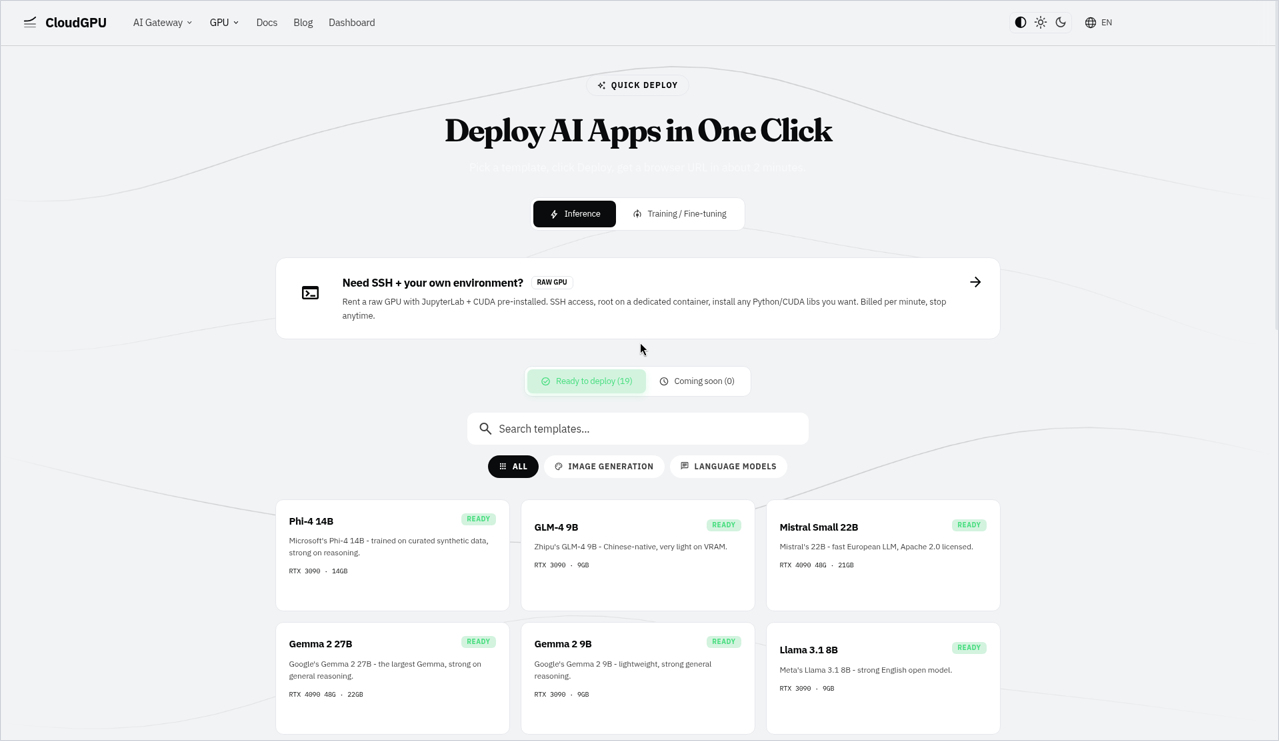
CloudGPU Quick Deploy page with Inference tab, raw GPU option, and model template cards.
-
Pick a card. Cards listed on /pricing on 2026-10-27 include the RTX 5090 32G, RTX 4090 48G, RTX 4090 24G, RTX 3090 24G, A100 80G, A800 80G, H20 96G and RTX PRO 6000 96G. See current rates on /pricing.
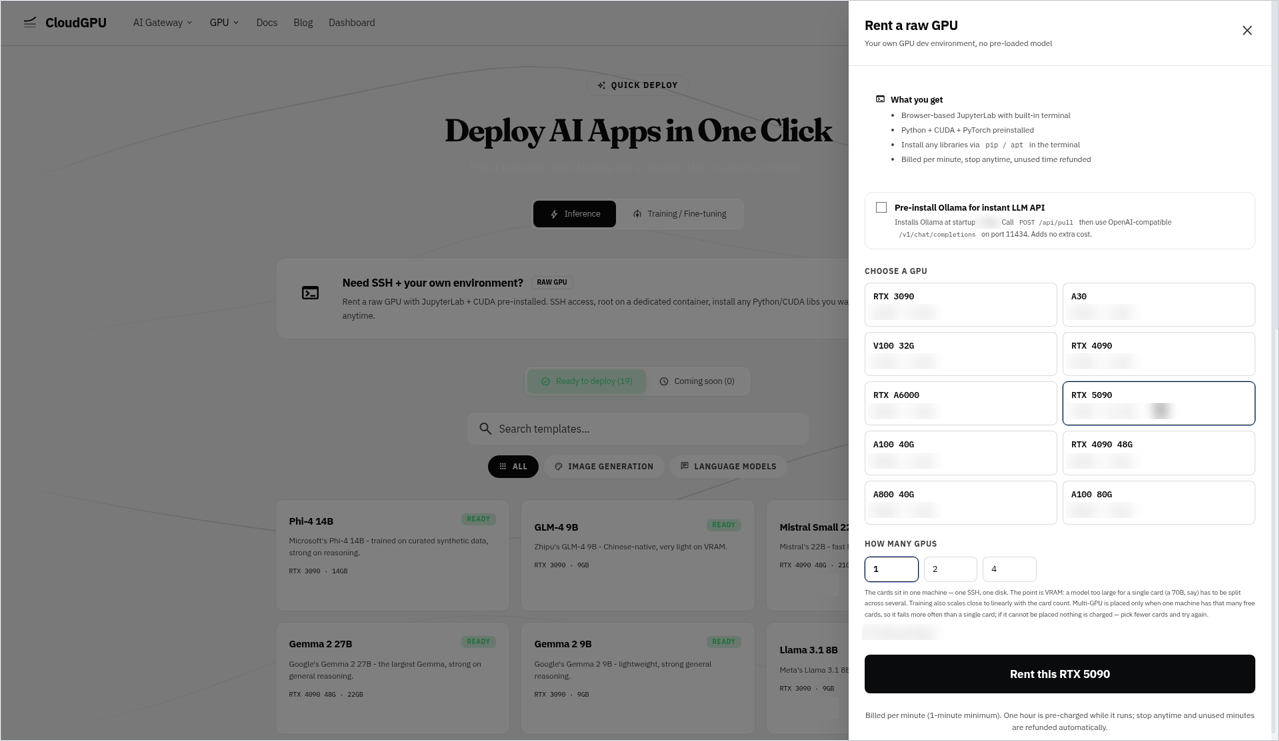
“Rent a raw GPU” panel with RTX 5090 selected and GPU count options.
-
Open a terminal in JupyterLab, or connect over SSH with your instance’s connection details (user, host and port):
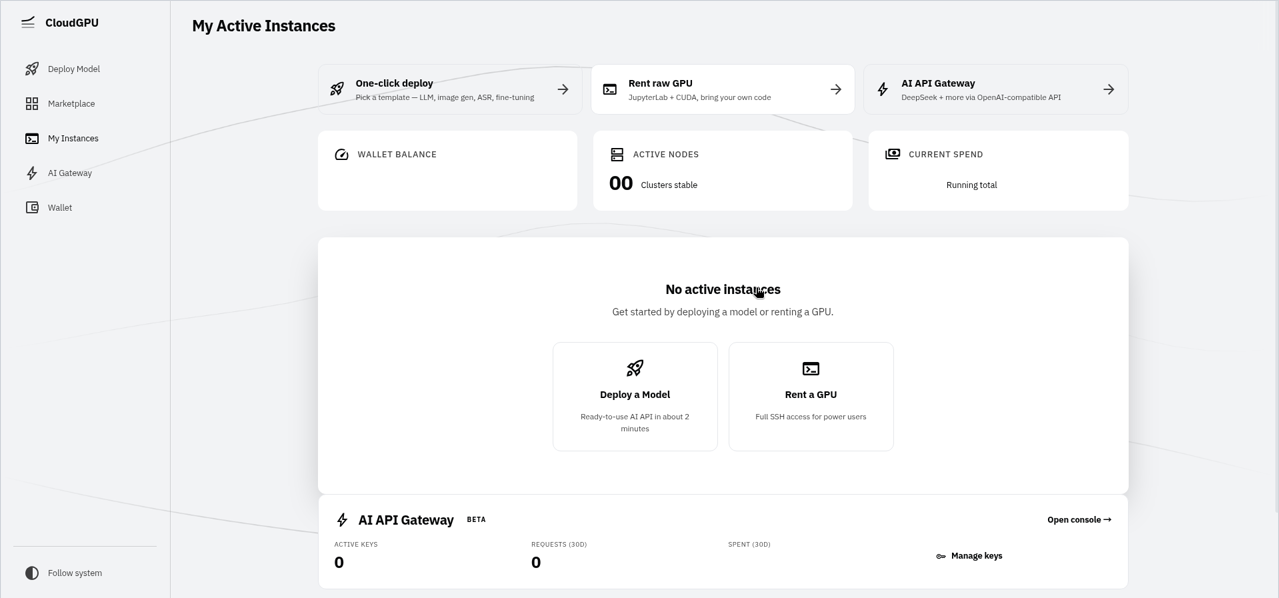
CloudGPU dashboard “My Active Instances” showing no active instances and quick-start actions.
ssh -p <port> <user>@<host>
Step 2: Check the environment first
nvidia-smi              # GPU name, driver version, "CUDA Version" in the header
nvcc --version          # CUDA toolkit (compiler), if one is on PATH
which python3 conda     # what Python is on PATH, and whether conda is already there
python3 --version
uname -m                # CPU architecture, used in the Miniforge file name
Note the CUDA Version in the nvidia-smi header: according to the NVIDIA nvidia-smi docs it is “the latest CUDA version supported by the driver” (nvidia-smi documentation, read 2026-10-27), and it decides which PyTorch wheel index you can use in Step 5. nvcc only matters if a package compiles its own CUDA code.
Our deploy page lists “JupyterLab + CUDA pre-installed” for Raw GPU; it does not list a driver version, Python version or conda, so read them from the commands above on your own instance rather than assuming them. If which conda prints a path, a conda is already on PATH and you can skip Step 3 and use it. If nvcc isn’t on PATH, you can still run the PyTorch pip wheels; you only need a CUDA toolkit when a package compiles its own CUDA code.
Step 3: Install Miniforge
According to the official Miniforge README, Miniforge is a minimal conda installer with conda-forge set as the default (and only) channel (Miniforge README, read 2026-10-27). Download and run the installer from its README:
cd ~
curl -L -O "https://github.com/conda-forge/miniforge/releases/latest/download/Miniforge3-$(uname)-$(uname -m).sh"
bash Miniforge3-$(uname)-$(uname -m).sh -b      # -b = non-interactive, installs to ~/miniforge3
~/miniforge3/bin/conda init bash
source ~/.bashrc
conda --version
The README notes that in a non-interactive (-b) install “the conda initialization commands will not be run by default”, which is why the conda init line is there. Without it, conda activate fails in a new shell.
Optional: stop the base environment from activating in every new shell, as the README suggests:
conda config --set auto_activate false
If curl is missing, install it with apt-get update && apt-get install -y curl (you are root in the container).
Step 4: Create and activate an environment
conda create -n torch python=3.12 -y
conda activate torch
python --version
which python            # should point into ~/miniforge3/envs/torch/
The current stable PyTorch needs Python 3.10 or later, according to the PyTorch install page; 3.12 is inside that range.
Non-Python dependencies are where conda helps; install them now, before pip. Optional example: conda install -y -c conda-forge ffmpeg.
Step 5: Install PyTorch with pip inside the environment
Pick the wheel index from the CUDA Version you noted in Step 2. On 2026-10-27 the PyTorch install page gives these two Linux pip commands for the current stable release (2.14.1):
# CUDA 12.6 build
pip install torch torchvision --index-url https://download.pytorch.org/whl/cu126
# CUDA 13.2 build
pip install torch torchvision --index-url https://download.pytorch.org/whl/cu132
Use an index whose CUDA version is not newer than the CUDA Version in your nvidia-smi header. For an RTX 5090 (Blackwell, compute capability 12.0) use the CUDA 13.x build: according to the PyTorch release notes, the 2.14 CUDA 12.6 build covers Maxwell to Hopper and the CUDA 13.0 and 13.2 builds add Blackwell 12.0 (PyTorch RELEASE.md, read 2026-10-27).
For other CUDA builds and the full index table, see our PyTorch CUDA version guide.
Then install the rest of your project with pip, inside the same activated environment:
pip install -r requirements.txt
The conda docs recommend using pip only after conda has installed what it can, and creating a new environment rather than running conda again after pip has changed it (conda docs: Managing environments, read 2026-10-27).
Step 6: Verify that the environment uses the GPU
python - <<'PY'
import sys, torch
print("python:", sys.executable)
print("torch", torch.__version__, "built for CUDA", torch.version.cuda)
print("available:", torch.cuda.is_available())
print("device:", torch.cuda.get_device_name(0))
print("build covers:", torch.cuda.get_arch_list())
x = torch.randn(2048, 2048, device="cuda")
print("matmul ran on", (x @ x).device)
PY
Look for: python inside ~/miniforge3/envs/torch/, a CUDA version (not None) for the build, available: True, your card’s architecture in build covers (sm_120 for an RTX 5090), and cuda:0 on the last line.
Step 7: Use the environment in JupyterLab
Register the environment as a notebook kernel, as the IPython docs describe (Installing the IPython kernel, read 2026-10-27):
conda activate torch
conda install -y ipykernel
python -m ipykernel install --user --name torch --display-name "Python (torch)"
Then choose Python (torch) in the JupyterLab launcher, or switch the kernel of an open notebook.
If Python (torch) doesn’t appear, check that jupyter kernelspec list (run from the JupyterLab terminal) shows a torch entry, then reload the JupyterLab browser tab.
Step 8: Save the environment before you destroy the instance
Data on the instance is permanently deleted when you destroy it (see /terms), so save the recipe, not the environment folder. The conda docs describe --from-history, which exports only the packages you asked for and keeps the file portable:
conda activate torch
conda env export --from-history > environment.yml
pip freeze > requirements-gpu.txt
nvidia-smi | head -n 4 > gpu-info.txt
Copy the files to your own computer, from your computer’s terminal:
scp -P <port> <user>@<host>:~/environment.yml .
scp -P <port> <user>@<host>:~/requirements-gpu.txt .
--from-history does not list packages you installed with pip, which is why requirements-gpu.txt is saved too. On the next instance, recreate it. The conda docs now prefer conda create --file; the conda create reference asks for a name with -n (or a path with -p), so pass it:
conda create -n torch --file environment.yml
# older conda: conda env create -f environment.yml
conda activate torch
pip install -r requirements-gpu.txt --extra-index-url https://download.pytorch.org/whl/cu132
Billing is per minute, rounded up, with a 1-minute minimum, and billing stops when you destroy the instance (see /terms). Time spent installing packages is GPU time, so keep the recipe files and the next setup is a few commands.
Troubleshooting
| Symptom | What to check | Source |
|---|---|---|
conda: command not found after install |
Run ~/miniforge3/bin/conda init bash, then source ~/.bashrc |
Miniforge README |
CondaError: Run 'conda init' before 'conda activate' |
Same: the -b install skipped conda init |
Miniforge README |
torch.cuda.is_available() is False |
torch.version.cuda is None (CPU build) or newer than the nvidia-smi CUDA Version; reinstall with --index-url |
PyTorch Get Started |
import torch works in the terminal but not in a notebook |
The notebook uses another kernel; register the environment (Step 7) and select it | IPython kernel install |
which python is not inside ~/miniforge3/envs/<env>/ |
The environment is not active in this shell; run conda activate <env> |
conda docs |
Packages break after mixing conda install and pip install |
Create a fresh environment: conda packages first, pip last | conda docs |
| “no kernel image is available” on an RTX 5090 | The PyTorch build lacks sm_120; install the cu132 build of 2.14 |
PyTorch RELEASE.md |
Which card fits your model is a separate question: VRAM need depends on model, precision and workflow; see How much VRAM do I need to run an LLM?.
FAQ
Should I use conda install pytorch -c pytorch on a cloud GPU?
No. PyTorch announced that 2.5 was the last release published to its pytorch channel on Anaconda, and its install page now lists pip as the supported package manager. Create the environment with conda, then install PyTorch with pip from the download.pytorch.org index that fits the CUDA Version shown by nvidia-smi.
Do I need to install the CUDA toolkit in my conda environment to use PyTorch?
No, not to run PyTorch. The PyTorch pip wheels bring their own CUDA runtime and only need a working NVIDIA driver, which you check with nvidia-smi. You need nvcc only if a package compiles its own CUDA code during install.
Why does conda activate fail after I install Miniforge with -b?
The batch install (-b) does not run conda init. Run ~/miniforge3/bin/conda init bash once, then open a new shell or run source ~/.bashrc, and conda activate will work.
Can I keep my conda environment after I destroy the instance?
Not on the instance itself: data on the instance is deleted when you destroy it. Export the environment to a file, for example conda env export --from-history > environment.yml plus pip freeze > requirements-gpu.txt, copy both files to your own computer, and recreate the environment on the next instance.
How do I use my conda environment in JupyterLab?
Install ipykernel inside the environment and register it with python -m ipykernel install --user --name